
Buffer-Free Streaming: Your Complete Guide to Smooth, Uninterrupted Playback
Discover the most effective, step-by-step strategies for achieving buffer-free streaming, from optimizing your home network and choosing the right hardware to adjusting app settings and knowing when to call your ISP.
Buffer-Free Streaming: Your Complete Guide to Smooth, Uninterrupted Playback
Few things are more frustrating than settling in for movie night, only to watch a spinning wheel freeze your screen mid-scene. Buffering is the silent enemy of great streaming experiences, and it affects millions of viewers every day. The good news is that buffer-free streaming is achievable for most households with the right combination of hardware, network settings, and streaming habits. This guide breaks down exactly why buffering happens and what you can do to eliminate it for good.
What Causes Buffering in the First Place?
Before you can fix buffering, it helps to understand what is actually happening under the hood. When you stream video, your device is continuously downloading small chunks of data and playing them back in sequence. Buffering occurs when your device cannot download those chunks fast enough to keep up with playback. The video player pauses to "pre-load" more data before it can continue.
The most common culprits include:
- Insufficient internet speed: HD streaming typically requires at least 5 Mbps, while 4K content can demand 25 Mbps or more per stream.
- Wi-Fi signal interference: Walls, appliances, and neighboring networks can weaken your wireless signal significantly.
- Network congestion: When multiple devices share bandwidth simultaneously, each one gets a smaller slice of available speed.
- Outdated hardware: Old routers, slow modems, or underpowered streaming devices can create bottlenecks.
- Server-side issues: Sometimes the streaming platform itself is under heavy load, especially during peak evening hours.
Identifying which factor is affecting your setup is the first step toward a permanent fix.
Run a Speed Test and Know Your Numbers
The single fastest way to diagnose a buffering problem is to run an internet speed test. Free tools like Speedtest by Ookla or Fast.com give you three critical numbers: download speed, upload speed, and ping (latency). For streaming purposes, download speed and latency matter most.
Use these benchmarks as a starting point:
- Standard Definition (SD): 3 Mbps minimum
- High Definition (HD 1080p): 5-10 Mbps per stream
- 4K Ultra HD: 25 Mbps per stream (Netflix recommends 15 Mbps; YouTube and Apple TV+ suggest up to 25 Mbps)
- Low latency: Aim for under 50 ms for responsive playback
Run your test at several times of day, including evenings when ISP networks are most congested. If your measured speeds consistently fall well below what you are paying for, contact your internet provider. If speeds look fine but buffering persists, the issue is likely inside your home network.
Optimize Your Home Network for Streaming
Your internet plan may deliver plenty of raw speed, but if that speed cannot reach your streaming device cleanly, buffering will follow. Network optimization is where most people find the biggest improvements.
Use a Wired Ethernet Connection
If your streaming device and router are in the same room, a direct Ethernet cable is the single most effective upgrade you can make. Wired connections eliminate wireless interference entirely, provide consistent low-latency throughput, and are immune to the crowding effects of a busy Wi-Fi environment. Many smart TVs, streaming sticks, and media players support Ethernet via an inexpensive USB adapter.
Upgrade or Reposition Your Router
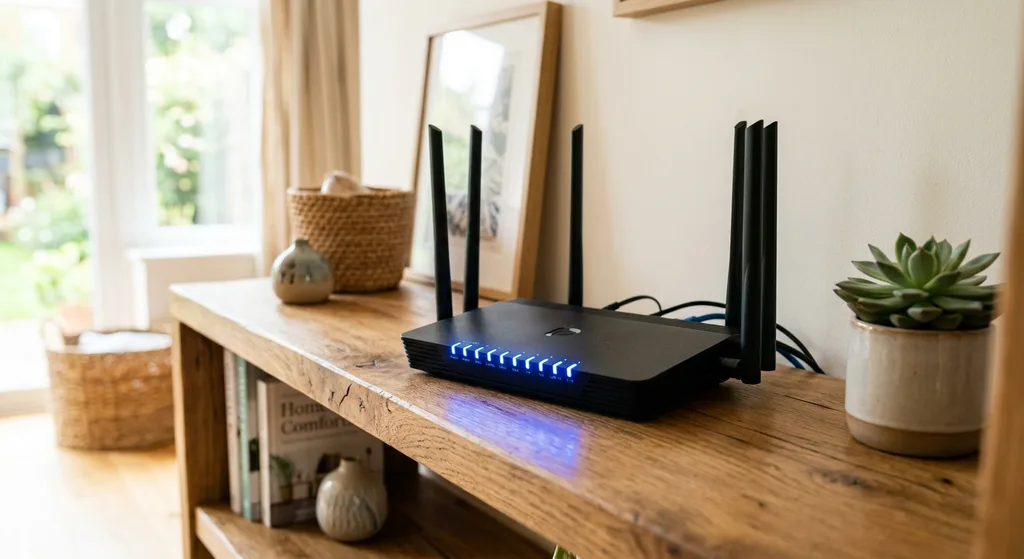
If Wi-Fi is your only option, placement matters enormously. Your router should be positioned in a central, elevated location, away from microwaves, cordless phones, and other electronics that operate on the 2.4 GHz band. Switching to the 5 GHz band on a dual-band router typically delivers faster, less congested performance for devices within reasonable range.
If your home is large or has thick walls, consider a mesh Wi-Fi system. Mesh networks use multiple access points to blanket your entire home with strong, seamless coverage, eliminating dead zones that cause intermittent buffering.
Prioritize Streaming Traffic with QoS
Most modern routers include a Quality of Service (QoS) setting that lets you assign higher bandwidth priority to specific devices or applications. By prioritizing your smart TV or streaming box, you ensure it gets the bandwidth it needs even when other devices are active on the network. Access QoS settings through your router's admin panel, usually found at 192.168.1.1 or 192.168.0.1 in your browser.
Adjust Streaming App and Device Settings
Hardware and network tweaks go a long way, but the settings inside your streaming apps and devices also play an important role in reducing buffering.
Lower Your Streaming Quality Temporarily
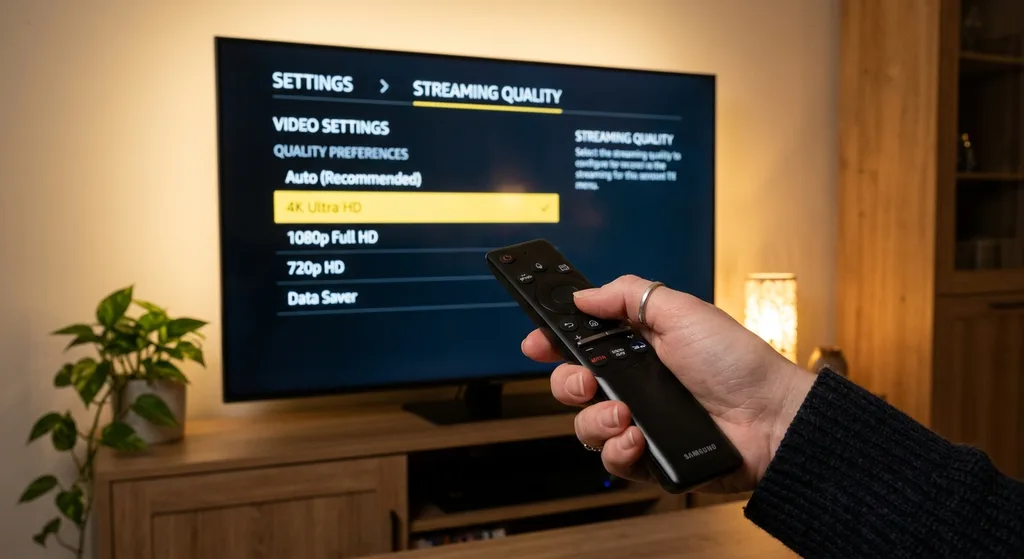
Most streaming platforms, including Netflix, Disney+, and YouTube, allow you to manually set video quality. If your connection is struggling to deliver 4K, dropping to 1080p dramatically reduces the data load and can eliminate buffering entirely. Think of it as a temporary trade-off: a slightly lower resolution image beats a constantly paused one.
Close Background Apps and Devices
Every device connected to your network and consuming data competes for bandwidth. Pause large downloads, cloud backups, and software updates on computers and phones before a streaming session. On your streaming device itself, close apps running in the background to free up processing memory and network resources.
Clear Cache on Your Streaming Device
Over time, streaming apps accumulate cached data that can slow down performance. On Android-based streaming devices, go to Settings, then Apps, select your streaming application, and clear the cache. On smart TVs, the process varies by manufacturer but is usually found under Application Manager settings. Clearing the cache periodically keeps apps running smoothly.
Choose the Right Streaming Device
Not all streaming hardware is created equal. Budget streaming sticks from several years ago often struggle to decode modern HDR and 4K content efficiently, leading to dropped frames and buffering that has nothing to do with your internet connection. Investing in a current-generation streaming device with a capable processor, updated Wi-Fi standards (Wi-Fi 6 support is increasingly common), and sufficient RAM makes a genuine difference.
When shopping for a streaming device, look for:
- Support for the latest Wi-Fi standard available in your price range
- Hardware decoding for H.265/HEVC, AV1, and Dolby Vision if you watch 4K content
- A recent processor with at least 2 GB of RAM
- An Ethernet port or adapter compatibility for wired setups
- Regular firmware updates from the manufacturer
A well-chosen streaming device works in harmony with your network rather than against it.
When to Call Your ISP
If you have optimized your home network, upgraded your device, and adjusted your app settings but buffering persists, the problem may lie with your internet service provider. Signs that your ISP may be the bottleneck include speeds that are consistently much lower than your plan promises, buffering that only happens during evening peak hours, or packet loss showing up in network diagnostic tests.
Document your speed test results across multiple days and times, then contact your ISP with that data. Common provider-side fixes include replacing an aging modem they supply, upgrading your service tier, or sending a technician to check the line quality from the street to your home. In some cases, simply renegotiating your plan or switching providers is the most practical solution.
Conclusion: Smooth Streaming Is Within Reach
Buffer-free streaming is not a luxury reserved for tech-savvy households with expensive setups. With a clear understanding of why buffering happens and a methodical approach to fixing it, most viewers can achieve consistently smooth playback on any platform. Start with a speed test, evaluate your home network, update your streaming device, and fine-tune your app settings. Each improvement you make compounds the others, and the result is the seamless, immersive viewing experience you are paying for.
By Editorial Team
Frequently asked questions
How much internet speed do I need for buffer-free 4K streaming?
Most 4K streaming services recommend a download speed of at least 15 to 25 Mbps per 4K stream. If multiple people or devices are streaming simultaneously, your total household bandwidth needs to accommodate each stream separately.
Why do I get buffering even though my internet speed test looks fine?
Speed tests measure your connection to a nearby server, not to the streaming platform's servers specifically. Buffering can still occur due to Wi-Fi interference between your router and device, an overloaded streaming service during peak hours, or a slow or outdated streaming device that cannot process the video fast enough.
Does switching from 2.4 GHz to 5 GHz Wi-Fi help with buffering?
Yes, in most cases. The 5 GHz band is less congested and supports faster speeds, though it has a shorter range than 2.4 GHz. If your streaming device is within a reasonable distance of your router, switching to 5 GHz typically delivers a noticeable improvement in streaming stability.
What is a mesh Wi-Fi system and will it help me stream without buffering?
A mesh Wi-Fi system uses multiple access points placed around your home to create a single, seamless wireless network with strong coverage throughout. For larger homes with dead zones or weak signal areas, a mesh system can dramatically reduce the weak-signal buffering that traditional single-router setups struggle to prevent.
Is it worth lowering the streaming quality to stop buffering?
Absolutely. Streaming at 1080p instead of 4K uses significantly less bandwidth and can eliminate buffering during congested periods. Most platforms adapt quality automatically, but manually setting a lower resolution guarantees smoother playback when your connection is under strain.
Discussion
Join the conversation
Share your perspective and connect with other readers.