Stream Optimization: The Complete Guide to a Smoother, Higher-Quality Live Stream
Learn how to optimize every layer of your live stream, from internet connection and encoder settings to audio, overlays, and platform-specific strategies, so viewers stay engaged broadcast after broadcast.
Stream Optimization: The Complete Guide to a Smoother, Higher-Quality Live Stream
Whether you are broadcasting gameplay, hosting a virtual event, or running a live shopping channel, stream optimization is the difference between a polished broadcast and a pixelated, buffering mess. Viewers are impatient. Studies consistently show that audiences abandon streams within the first few seconds of poor performance. Getting the technical and creative fundamentals right from the start keeps your audience engaged and tells every platform algorithm that your content is worth promoting.
This guide breaks down every major pillar of stream optimization, from internet connection and encoder settings to scene composition and viewer retention strategies, so you can go live with confidence.
1. Start With Your Internet Connection
Your upload speed is the foundation of every other optimization effort. No amount of fine-tuned encoder settings will save a stream that is fighting a sluggish or unstable connection. Before you configure anything else, run a dedicated upload speed test at a site such as fast.com or speedtest.net, and do it at the time of day you normally stream, because bandwidth availability fluctuates.
As a general rule, budget roughly double your target bitrate for headroom. If you plan to stream at 6,000 kbps, you want a consistent upload speed of at least 12 Mbps. This cushion accommodates background traffic from operating-system updates, cloud backups, and other devices on your network.
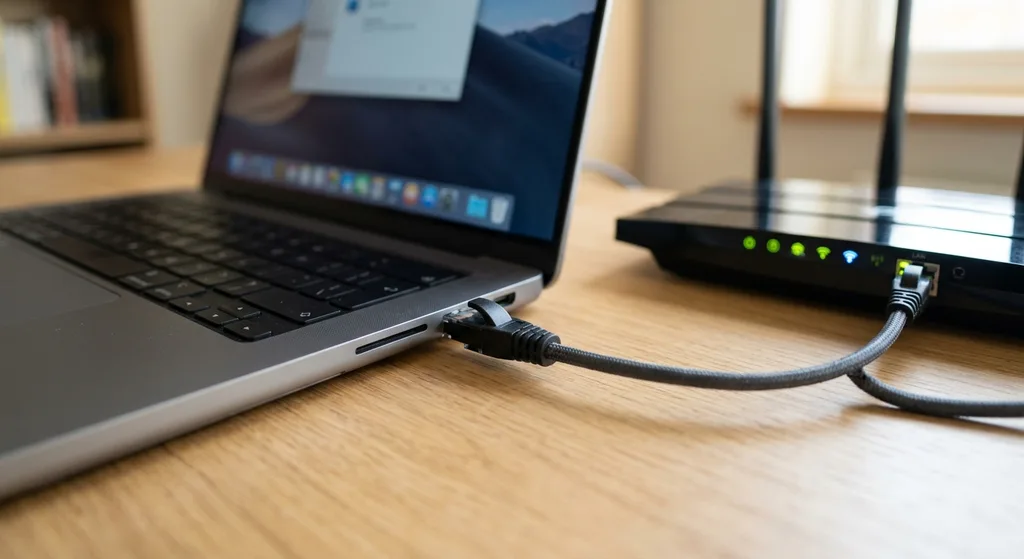
- Use a wired Ethernet connection whenever possible. Wi-Fi introduces latency spikes and packet loss that devastate stream stability.
- Prioritize streaming traffic in your router's Quality of Service (QoS) settings so other devices do not crowd out your broadcast.
- Restart your modem and router an hour before going live to clear cached routing tables and free up memory.
- Test with a trial stream to a private or unlisted channel before any important broadcast.
2. Dial In Your Encoder Settings
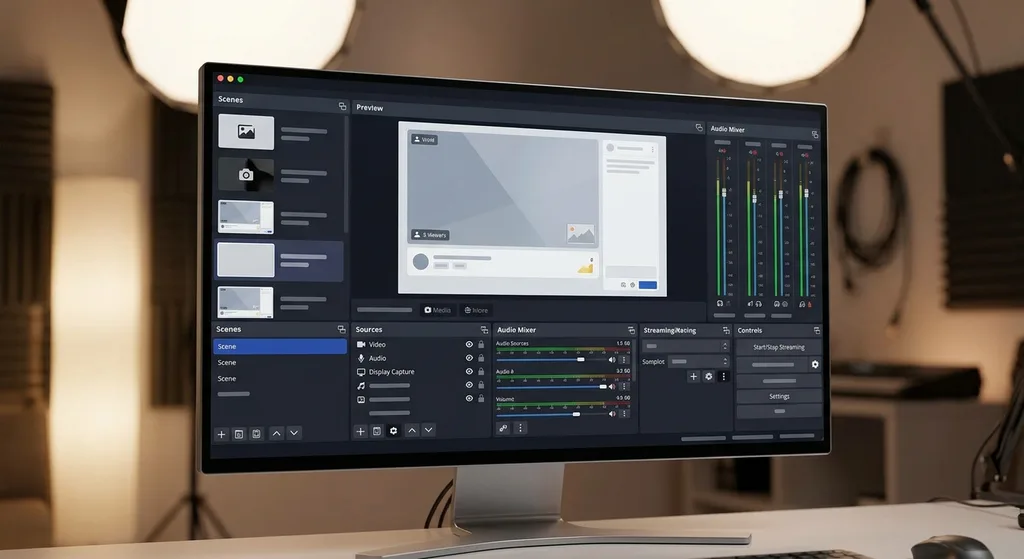
Your encoder, whether it is software like OBS Studio or Streamlabs, or a dedicated hardware device, converts raw video and audio into a compressed stream. Choosing the right encoder settings prevents both quality loss and the choppy frames that come from asking your hardware to do more than it can handle.
Resolution and Frame Rate
Most platforms display streams at 1080p60 or 720p60. Streaming at 1440p or 4K is rarely worth the bandwidth cost unless your platform specifically supports it and your audience is watching on large displays. Match your output resolution to the highest resolution your upload speed can reliably sustain. When in doubt, a steady 720p60 stream looks far better than an unstable 1080p60 stream.
Bitrate
Bitrate controls how much data per second is sent to viewers. Higher bitrates mean sharper images but require more upload bandwidth. Recommended starting points:
- 1080p60: 6,000 to 8,000 kbps
- 1080p30: 4,500 to 6,000 kbps
- 720p60: 3,500 to 5,000 kbps
- 720p30: 2,500 to 4,000 kbps
Codec Choice
H.264 (AVC) is the safest choice for cross-platform compatibility. H.265 (HEVC) and AV1 offer superior compression but are not universally supported by every platform's ingest servers. Check your target platform's documentation before switching codecs.
Hardware vs. Software Encoding
NVIDIA's NVENC, AMD's AMF, and Apple's VideoToolbox offload encoding work to a dedicated chip on your GPU, freeing your CPU for game logic or other tasks. This almost always produces a more stable stream than x264 software encoding on a mid-range machine. If your GPU supports hardware encoding, enable it.
3. Optimize Your Audio
Audio quality is often more important to viewer retention than video quality. A crisp voice over slightly compressed video is far more watchable than studio-quality video paired with an echo-filled, clipping microphone.
- Set your audio bitrate to at least 160 kbps (320 kbps for music-focused streams) using AAC encoding.
- Apply a noise gate in your audio software to silence background hum between sentences.
- Use a compressor filter to even out the volume difference between quiet speech and excited reactions.
- Monitor your audio levels with headphones, not speakers, to avoid feedback loops.
- Position your microphone 4 to 6 inches from your mouth, slightly off-axis, to reduce plosive sounds.
4. Scene and Overlay Design
A well-structured scene layout does more than make your stream look professional. It actively helps with stream optimization by keeping graphical overlays lightweight and preventing your CPU or GPU from rendering unnecessary complexity.
Animated overlays built with browser sources are convenient but can consume significant CPU resources. A few best practices:
- Limit active browser sources to those you are actually using in the current scene.
- Use still PNG overlays instead of animated GIFs wherever motion is not essential.
- Keep your scene collection organized and delete scenes you no longer use, since OBS renders all open scenes in the background by default.
- Set a consistent color palette and font family across all overlays to project a professional brand identity.
5. Platform-Specific Optimization
Each streaming platform has its own ingest infrastructure, transcoding tiers, and algorithm preferences. Treating them identically is a missed opportunity.
Twitch
Twitch recommends a maximum ingest bitrate of 6,000 kbps for non-partnered streamers. Partnered and Affiliate accounts gain access to transcoding, which gives viewers the option to watch at lower resolutions. Until you reach those tiers, many viewers are stuck at your source resolution, so optimize accordingly.
YouTube Live
YouTube encodes multiple quality levels for most streams, giving viewers automatic quality switching. You can push higher bitrates here than on Twitch. YouTube also indexes VOD replays in its search engine, so optimize your stream title, description, and tags as you would for a standard YouTube video upload.
Kick and Other Emerging Platforms
Newer platforms often have less rigid ingest guidelines. Check their developer documentation for current limits and update your settings when policies change. Running the same settings across every platform without checking is one of the most common stream optimization mistakes.
6. Monitor Performance During the Stream
Stream optimization does not end when you click "Go Live." Real-time monitoring helps you catch problems before they chase away viewers.
- In OBS, watch the bottom status bar for dropped frames. Anything above 1 percent dropped frames warrants investigation.
- Enable the OBS Stats dock to track encoding lag, render lag, and CPU usage simultaneously.
- Use your platform's stream health dashboard. Both Twitch and YouTube provide ingest health metrics in their creator dashboards.
- Ask a trusted moderator to watch from a separate device and network to spot viewer-side issues you cannot see from the source.
7. Post-Stream Review and Iteration
The best streamers treat each broadcast as a data point. After every stream, review the platform analytics to identify the moments when concurrent viewership dropped. Cross-reference those timestamps with your OBS log file to see whether technical issues coincided with audience departures. Over several sessions, patterns emerge that guide your next round of optimizations.
A few metrics worth tracking regularly:
- Average concurrent viewers (ACV)
- Peak concurrent viewers
- Unique viewers and follower conversion rate
- Chat messages per minute as a proxy for engagement
- VOD watch time if your platform provides it
Conclusion
Stream optimization is an ongoing process, not a one-time setup. Every upgrade to your connection, encoder, audio chain, and scene layout compounds over time into a dramatically better viewer experience. Start with the fundamentals, test before every important broadcast, and use real data from your analytics to guide each iteration. A smooth, professional stream builds the kind of trust that turns casual viewers into loyal community members.
By the Editorial Team
Frequently asked questions
What upload speed do I need for a 1080p60 stream?
You should have a consistent upload speed of at least 12 to 16 Mbps to stream at 1080p60 with a target bitrate of 6,000 to 8,000 kbps. The extra headroom accommodates background network traffic and prevents dropped frames.
Is hardware encoding always better than software (x264) encoding?
For most mid-range and gaming PCs, hardware encoding via NVENC (NVIDIA), AMF (AMD), or VideoToolbox (Apple) produces a more stable stream because it frees the CPU. However, on high-end CPUs with many cores, a slow x264 preset can achieve slightly better image quality at the same bitrate. Test both on your specific hardware.
How many dropped frames are acceptable during a live stream?
Aim for zero dropped frames, but a rate below 0.5 percent is generally considered acceptable. Anything above 1 percent is noticeable to viewers and warrants troubleshooting your network or lowering your bitrate.
Should I stream at the same settings on every platform?
No. Each platform has different ingest bitrate limits, transcoding availability, and audience expectations. Always check the current documentation for Twitch, YouTube Live, Kick, or whichever platform you use, and tailor your settings accordingly.
How often should I review my stream optimization settings?
Review your settings after any significant hardware or internet plan change, after a platform updates its ingest guidelines, and whenever your analytics show a consistent drop in viewer retention or an increase in dropped frames.
Discussion
Join the conversation
Share your perspective and connect with other readers.