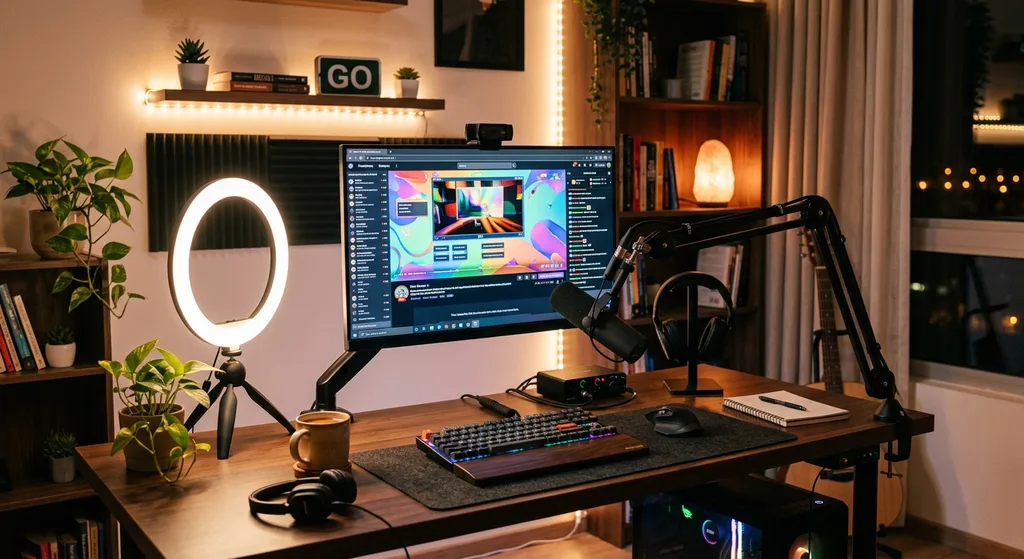
Streaming for Beginners: Everything You Need to Know to Start Watching or Going Live
New to streaming? This beginner's guide covers everything from choosing a platform and setting up your devices to going live for the first time, with practical tips for viewers and creators alike.
Streaming for Beginners: Everything You Need to Know to Start Watching or Going Live
Whether you want to cut the cord and watch your favorite shows online or you dream of broadcasting your own content to an audience, streaming has never been more accessible. But for newcomers, the sheer number of platforms, settings, devices, and technical terms can feel overwhelming. This guide breaks it all down into plain language so you can get started with confidence.
Streaming simply means delivering audio or video content over the internet in real time, rather than downloading a file first. You can be on the receiving end as a viewer, or on the broadcasting end as a creator. Both paths are easier to start than most people expect.
Understanding the Two Sides of Streaming
Before diving into setup tips, it helps to understand the two main ways people participate in streaming.
Passive streaming (watching): You subscribe to a service like a video-on-demand platform or a music app, open it on your device, and content plays instantly. No downloads, no discs. The provider handles all the heavy lifting on their servers, and your job is simply to have a stable internet connection and a compatible device.
Active streaming (broadcasting): You go live, sending your audio and video out to viewers in real time. This requires a few more pieces: a capture source (your webcam, microphone, or game capture), streaming software, and a platform to broadcast on. It sounds technical, but modern tools have made the process genuinely beginner-friendly.
Most people start as viewers and gradually become curious about creating their own streams. Both journeys are worth exploring.
What You Need to Start Watching Streams
Getting started as a viewer requires almost nothing beyond what you probably already own. Here is what to check before you sign up for any service.
- A compatible device: Smart TVs, smartphones, tablets, laptops, desktop computers, and streaming sticks (like Roku or Fire Stick) all work with major platforms. Most services have dedicated apps that make the experience smoother than using a browser.
- A reliable internet connection: For standard-definition video, 3 Mbps is usually enough. High-definition (HD) streams typically need 5 to 10 Mbps, and 4K content can demand 25 Mbps or more. Running a quick speed test before subscribing to anything will tell you what quality tier is realistic for your connection.
- A streaming account: Most platforms offer a free trial. Start with one service before committing to multiple subscriptions so you can evaluate the content library and interface first.
If you are not sure which platform fits your tastes and budget, our guide on Best Streaming Platforms in 2025: How to Choose the Right Service for You walks you through the leading options side by side.
What You Need to Start Broadcasting Live
Going live for the first time involves a few more steps than watching, but the barrier to entry is lower than it used to be. Here is the core equipment and software lineup for a beginner broadcaster.
Hardware Essentials
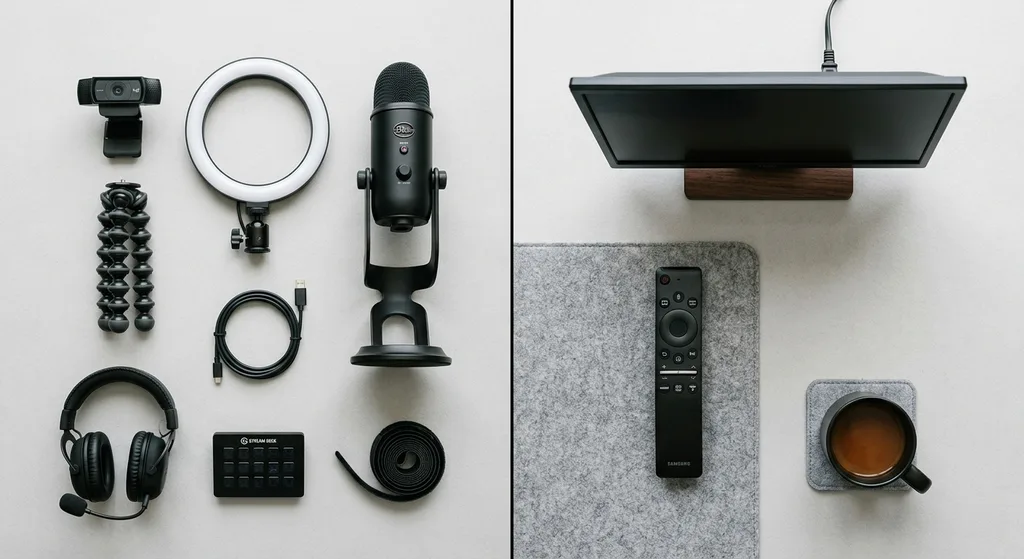
- Camera: Your smartphone camera or a basic USB webcam is a perfectly acceptable starting point. You do not need a professional camera on day one.
- Microphone: Audio quality matters more than video quality to most viewers. A USB microphone in the $50 to $100 range is a significant upgrade over a built-in laptop mic and makes an immediate difference.
- Lighting: Natural window light or an inexpensive ring light dramatically improves how you look on camera. This is one of the most cost-effective investments a new streamer can make.
- Stable internet: For broadcasting, upload speed is what matters. Aim for at least 5 to 10 Mbps upload for a clean 1080p stream. A wired ethernet connection is more reliable than Wi-Fi.
Streaming Software
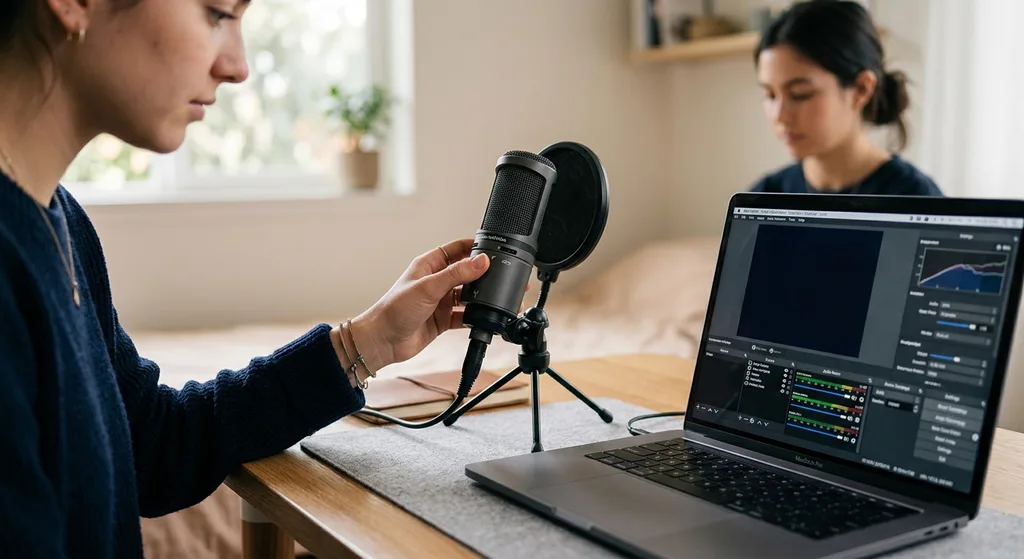
OBS Studio (Open Broadcaster Software) is the industry-standard free tool used by beginners and professionals alike. It lets you combine your camera feed, microphone audio, screen capture, and on-screen graphics into a single broadcast. The interface can feel intimidating at first, but a well-configured template gets you live in minutes rather than hours.
Other beginner-friendly options include Streamlabs (which wraps OBS in a more guided interface) and browser-based tools that require no download at all.
Choosing Your Streaming Platform as a Creator
Where you broadcast matters as much as how you broadcast. Each platform has a different audience, culture, and monetization structure. Here is a quick orientation.
- Twitch: The dominant platform for gaming and esports, with a large built-in audience but intense competition for discovery.
- YouTube Live: Integrated with YouTube's massive search-driven ecosystem, making it easier for new creators to be found over time.
- Facebook Live: Useful if you already have an established Facebook following or local community.
- Dedicated niche platforms: Some platforms, like Aionstreamz, are built around specific creator communities and offer more focused tools and support for those audiences.
You do not need to choose just one forever. Many creators simulcast to multiple platforms using multistreaming tools once they get comfortable with the basics.
Key Settings Every Beginner Should Know
Whether you are watching or broadcasting, a handful of settings have an outsized effect on your experience.
For Viewers
Most platforms let you manually select your video quality. If your stream keeps buffering, drop the quality from 1080p to 720p or even 480p. A smooth lower-resolution picture is always more enjoyable than a stuttering high-resolution one. Also check whether your router supports a 5 GHz Wi-Fi band, which is generally faster and less congested than the 2.4 GHz band.
For Broadcasters
Inside OBS or your streaming software, the most important settings are your bitrate, resolution, and encoder. A good beginner starting point for most platforms is:
- Resolution: 1920x1080 (1080p) output, downscaled to 1280x720 if your upload speed is limited
- Frame rate: 30 fps for most content; 60 fps for gaming if your hardware supports it
- Bitrate: 3,000 to 6,000 Kbps for 1080p video; lower for slower connections
- Encoder: Use your GPU encoder (NVENC for Nvidia, AMF for AMD) if available, as it puts less strain on your CPU
For a deeper dive into optimizing these numbers, take a look at our full breakdown: Streaming Quality Settings: A Complete Guide to Getting the Best Picture and Sound.
Building Good Habits from the Start
Technical setup is only half the story. How you approach streaming as a habit determines whether you stick with it long enough to see results.
Set a consistent schedule: Even one or two streams per week at the same time helps your audience know when to show up. Consistency builds trust faster than marathon sessions with no predictable pattern.
Engage with your audience: Read and respond to chat. Ask questions. Acknowledge new viewers by name. The interactive quality of live streaming is what sets it apart from pre-recorded video, so lean into it.
Review your recordings: Most platforms let you save your broadcasts as video-on-demand. Watching them back with fresh eyes reveals audio issues, pacing problems, and moments worth clipping for social media.
Keep improving one thing at a time: Upgrade your microphone before your camera. Fix your lighting before buying a capture card. Small, focused improvements compound quickly without overwhelming your budget or learning curve.
For creators who want to discover what content is performing well and where new viewers are coming from, our guide to New Releases Streaming: Your Guide to Finding and Watching the Latest Content in 2025 is a helpful resource for staying current with what audiences are seeking out.
Conclusion
Streaming for beginners does not have to be complicated. Whether you are settling in as a viewer or gearing up to go live for the first time, the fundamentals come down to the right device, a decent connection, and a platform that matches your goals. Start simple, build your setup gradually, and remember that every experienced streamer was once exactly where you are now. The best stream is the one you actually start.
Frequently asked questions
What internet speed do I need to start streaming?
For watching streams, 5 to 10 Mbps download speed is enough for HD quality. For broadcasting live, you need at least 5 to 10 Mbps upload speed for a clean 1080p stream. A wired ethernet connection is more reliable than Wi-Fi for either use case.
Do I need expensive equipment to start live streaming?
No. A smartphone camera or basic USB webcam, combined with a budget USB microphone and free software like OBS Studio, is enough to go live. You can upgrade individual pieces of equipment over time as your channel grows.
What is OBS Studio and is it free?
OBS Studio (Open Broadcaster Software) is a free, open-source program used to capture and broadcast video and audio to streaming platforms. It is widely used by beginners and professional streamers and is available for Windows, Mac, and Linux.
Which streaming platform is best for beginners?
The best platform depends on your content type and existing audience. YouTube Live is strong for discoverability through search, Twitch suits gaming content, and niche platforms like Aionstreamz offer focused community support. Starting with one platform and mastering it before expanding is a sound strategy.
How often should I stream as a beginner?
Streaming once or twice a week on a consistent schedule is a practical starting point. Predictable timing helps your audience know when to tune in, which is more effective for growth than occasional long sessions with no regular pattern.
Discussion
Join the conversation
Share your perspective and connect with other readers.