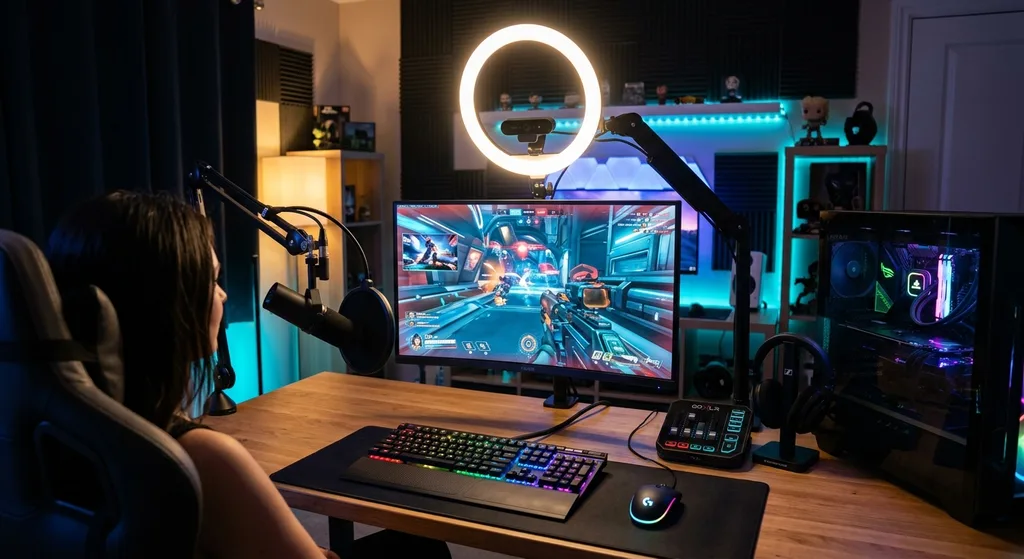
The Complete Online Streaming Tutorial: How to Go Live Like a Pro
This complete online streaming tutorial covers everything beginners need to go live confidently, from choosing encoder software and configuring video settings to engaging your audience and growing your channel over time.
The Complete Online Streaming Tutorial: How to Go Live Like a Pro
Whether you want to broadcast a gaming session, host a virtual workshop, or build an audience around your passion, learning how to stream online has never been more accessible. Yet for many beginners, the technical side of live streaming can feel overwhelming. What software do you need? How do you configure your settings? How do you keep your audience engaged once you are actually live? This online streaming tutorial walks you through every essential step, from planning your first broadcast to growing a loyal viewer base.
Understanding the Basics of Online Streaming
At its core, live streaming is the process of transmitting audio and video data over the internet in real time. Your computer or capture device encodes that data, sends it to a streaming platform's server, and viewers watch the result with only a few seconds of delay. The key components you need to understand before going live are:
- Encoder: Software (or hardware) that compresses and packages your video and audio into a streamable format.
- Platform: The destination where viewers watch your stream, such as Twitch, YouTube Live, or Facebook Live.
- Bitrate: The amount of data sent per second. Higher bitrates produce sharper video but require a stronger internet connection.
- Stream key: A private code your encoder uses to authenticate and send your broadcast to the correct channel.
Grasping these four concepts gives you a solid mental model before you touch a single setting.
Choosing the Right Streaming Software
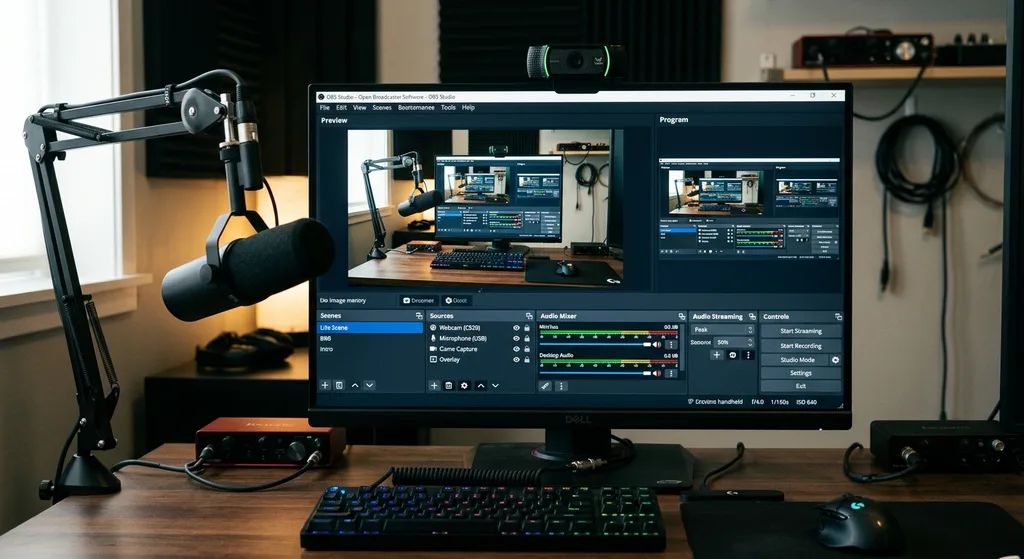
Your encoder software is the nerve center of every stream. For most people starting out, OBS Studio (Open Broadcaster Software) is the gold standard. It is free, open-source, and available on Windows, macOS, and Linux. Streamlabs OBS is a beginner-friendly fork that adds built-in alerts, widgets, and a simplified interface. If you are primarily on a Mac, Ecamm Live offers a polished experience designed around macOS conventions.
When evaluating any encoder, consider these factors:
- Ease of setup: Does it offer auto-configuration wizards?
- Scene management: Can you switch between multiple camera angles or screen layouts smoothly?
- Plugin ecosystem: Are there community-built tools that extend functionality?
- CPU and GPU usage: Will it run well on your specific hardware?
Most new streamers do well starting with OBS Studio's built-in Auto-Configuration Wizard, which tests your hardware and internet connection to recommend optimal settings automatically.
Configuring Your Audio and Video Settings
Getting your settings right before you go live saves you from frustrating mid-stream fixes. Here are the recommended baseline configurations for most beginner streamers:
Video Settings
- Resolution: 1920x1080 (1080p) is ideal. If your upload speed is below 6 Mbps, drop to 1280x720 (720p).
- Frame rate: 30 fps is reliable for most content; 60 fps is preferable for fast-moving games or demonstrations.
- Encoder: Use hardware encoding (NVENC for Nvidia, AMF for AMD) when available to reduce CPU load.
- Bitrate: 4,500 to 6,000 Kbps for 1080p at 60 fps; 2,500 to 4,000 Kbps for 720p at 30 fps.
Audio Settings
- Set your sample rate to 48 kHz to match most streaming platforms.
- Use a dedicated USB or XLR microphone whenever possible; built-in laptop microphones pick up too much background noise.
- Apply a noise suppression filter inside your encoder to reduce hum, fans, and keyboard clicks.
- Monitor your audio meter in OBS and aim for peaks around -12 dB to leave headroom.
Run a 10-minute test recording before your first live session. Play it back with headphones to catch issues you might miss while focused on streaming.
Setting Up Your Scenes and Overlays
A scene in OBS is a saved layout that combines multiple sources: your webcam, your screen capture, background music, and graphic overlays. Organizing your scenes thoughtfully lets you switch views without disrupting the flow of your broadcast.
Common scene presets every streamer should create include:
- Starting Soon: A branded holding screen with countdown timer and social links while you finalize setup.
- Main Content: Your primary layout with webcam, screen share, and chat overlay visible.
- Brb (Be Right Back): A simple animated screen that signals you are temporarily away.
- Ending Screen: A thank-you card with subscribe prompts and upcoming stream information.
Overlays do not need to be elaborate. Clean, minimal designs with consistent fonts and colors often look more professional than busy, cluttered ones. Free overlay templates are available from sites like Nerd or Die and Streamlabs' asset store.
Engaging Your Audience in Real Time
Technical quality matters, but audience engagement is what transforms a broadcast into a community. Viewers who feel seen and heard are far more likely to return, subscribe, and share your channel. Here are proven strategies for keeping your audience connected:
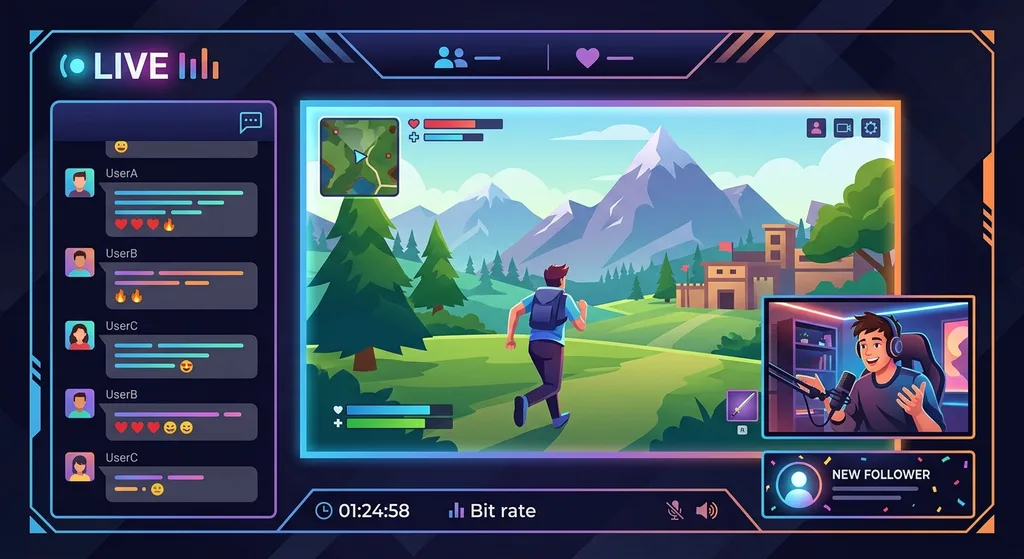
- Read the chat aloud: Acknowledge viewer messages by name whenever possible. This creates an inclusive atmosphere that encourages participation.
- Ask open-ended questions: Invite opinions on what you are doing. "What would you do differently?" generates more responses than yes-or-no prompts.
- Set a consistent schedule: Streams at predictable times make it easier for followers to plan their attendance. Announce your schedule on social media and pin it to your channel profile.
- Use channel point rewards: Platforms like Twitch let viewers redeem points for custom on-stream actions, adding a layer of gamification that rewards loyal viewers.
- Recap highlights: Briefly summarize what has happened for viewers who join mid-stream so they do not feel lost.
The energy you project matters as much as the content itself. Even during slow chat moments, keep commentating. Silence is more awkward on a live stream than it would be in a recorded video.
Optimizing Your Internet Connection for Streaming
A stable internet connection is non-negotiable. Even the best encoder settings cannot compensate for a fluctuating upload speed. Follow these steps to maximize connection reliability:
- Use a wired ethernet connection instead of Wi-Fi whenever possible. Ethernet eliminates wireless interference and provides consistent latency.
- Close bandwidth-hungry background applications such as cloud backup services, game update clients, and video conferencing apps before going live.
- Run a speed test at Speedtest.net immediately before streaming. Your upload speed should be at least 1.5 times your target bitrate to provide headroom.
- If you share a network, coordinate with other household members to avoid simultaneous large downloads or streaming sessions.
- Consider Quality of Service (QoS) settings on your router to prioritize streaming traffic over other devices.
Growing Your Channel After Each Stream
Going live is only half the equation. What you do between streams determines how fast your audience grows. After each broadcast, export the VOD (video on demand) from your platform and repurpose it. Trim the best moments into short clips for YouTube Shorts, TikTok, or Instagram Reels. Write a brief recap post for your community tab or Discord server. Review your analytics to see which segments held viewer attention and which caused drop-offs, then adjust your format accordingly.
Collaborating with other streamers in your niche is one of the fastest organic growth strategies available. A co-stream or raid exposes both audiences to new content creators and builds goodwill within the community. Start by engaging genuinely in other streamers' chats before approaching them about a collaboration.
Conclusion
Live streaming rewards consistency and curiosity in equal measure. By understanding the fundamentals, configuring your software correctly, building engaging scene layouts, and showing up on a reliable schedule, you give your channel the strongest possible foundation. Use every stream as a learning opportunity, iterate on your setup over time, and focus on building real connections with the people watching. The technical side will become second nature faster than you expect, and the community you grow will make every hour in front of the camera worthwhile.
Written by the Editorial Team
Frequently asked questions
What internet upload speed do I need to start streaming?
As a general rule, your upload speed should be at least 1.5 times your target bitrate. For a 1080p stream at 60 fps with a 6,000 Kbps bitrate, aim for at least 9 Mbps of stable upload speed. Run a speed test right before going live to confirm your connection is performing as expected.
Is OBS Studio free to use?
Yes. OBS Studio is completely free and open-source. It is available for Windows, macOS, and Linux, and it supports all major streaming platforms including Twitch, YouTube Live, and Facebook Live.
What frame rate should I stream at as a beginner?
30 fps is a reliable starting point for most content types. If you stream fast-paced games or detailed tutorials where motion clarity matters, 60 fps is preferable, though it requires a higher bitrate and a stronger internet connection.
How do I reduce background noise on my stream?
Apply a noise suppression filter inside your encoding software, use a dedicated USB or XLR microphone rather than a built-in laptop mic, and stream in a room with soft furnishings that absorb sound. Monitoring your audio meter and aiming for peaks around -12 dB also helps prevent distortion.
How often should I stream to grow my channel?
Consistency matters more than frequency. Broadcasting on a predictable schedule, even if that is just two or three times per week, makes it easier for followers to plan their attendance and signals reliability to platform recommendation algorithms.
Discussion
Join the conversation
Share your perspective and connect with other readers.