
Buffer Free Streaming: A Practical Guide to Smooth, Uninterrupted Playback
This guide breaks down the common causes of streaming buffering and offers practical, step-by-step fixes for smoother, more reliable playback.
Few things ruin a movie night or a live sports moment faster than a spinning loading icon. Buffer free streaming is the goal every viewer chases, whether you are watching a show, gaming, or hosting your own live broadcast. The good news is that most buffering issues come from a handful of common, fixable causes. This guide breaks down what actually causes buffering and what you can do about it, step by step.
What Causes Buffering in the First Place
Buffering happens when your device cannot download video data fast enough to keep up with playback. This can stem from several sources: a slow or unstable internet connection, network congestion from other devices, outdated hardware, poorly configured router settings, or even issues on the streaming service's end. Understanding where the bottleneck lives is the first step toward solving it.
In most home setups, the culprit is a shared connection trying to do too much at once. A household running video calls, downloads, smart home devices, and a 4K stream simultaneously is asking a lot of a single internet connection, especially if that connection is not particularly fast to begin with.
Check and Upgrade Your Internet Connection
Before adjusting any settings, run a basic internet speed test. Most streaming services recommend at least 5 Mbps for HD content and 25 Mbps for 4K. If your measured speed is consistently below these thresholds during peak hours, that is likely your primary issue.
If your plan technically meets the requirement but you still experience buffering, consider these factors:
- Contact your internet service provider to ask about network congestion in your area during peak hours
- Check whether your plan has data caps that throttle speeds after a certain usage threshold
- Consider upgrading your plan if multiple people in your household stream simultaneously
Optimize Your Home Network Setup
Wi-Fi signal quality has a huge impact on streaming stability. A wired Ethernet connection is generally more reliable than Wi-Fi because it is not subject to interference, distance, or signal obstruction. If running a cable to your streaming device is not practical, try these adjustments instead.
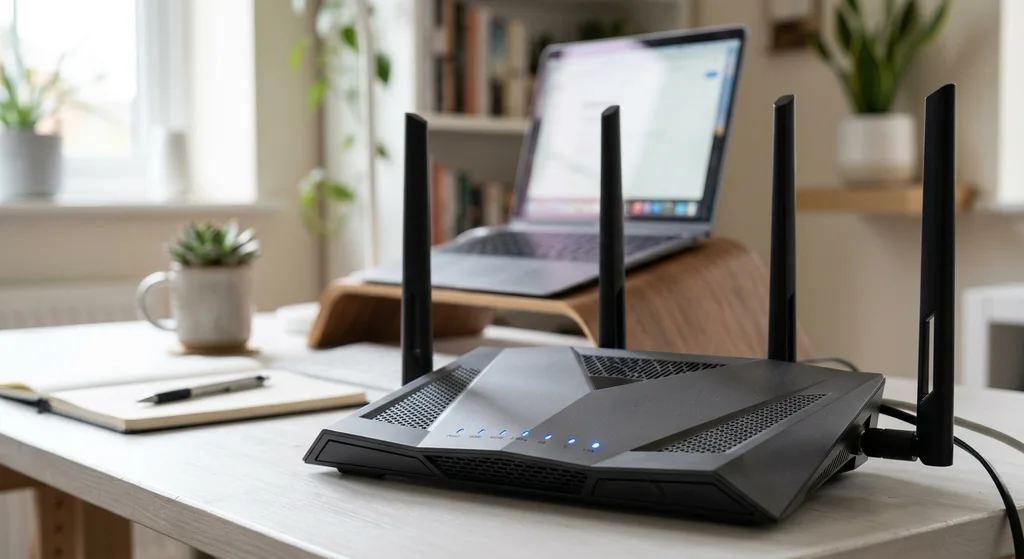
Position your router in a central, elevated location away from walls, metal objects, and other electronics that can interfere with the signal. If your home is large, a mesh Wi-Fi system can help eliminate dead zones that cause intermittent buffering. Many routers also allow you to prioritize streaming traffic through Quality of Service settings, which can help during times when multiple devices are active on the network.
For a deeper walkthrough of network tuning and hardware choices, see our complete guide to buffer-free streaming.
Adjust Streaming App and Device Settings
Sometimes the fix is as simple as lowering the video quality setting within the app itself. Most streaming platforms let you choose between automatic quality, which adjusts based on your connection, or a manual setting where you can lock in a lower resolution to reduce buffering risk.
It is also worth clearing the cache on your streaming app or device periodically, as a buildup of temporary files can slow performance over time. Make sure your streaming device's firmware and the app itself are updated to the latest version, since updates often include performance improvements and bug fixes related to playback stability.
If you are on an older streaming stick, smart TV, or media box, hardware limitations may also be a factor. Devices with limited processing power can struggle to decode higher resolution video smoothly, regardless of how fast your internet connection is.
Manage Network Traffic During Peak Viewing Times
If you share your connection with others, coordinate heavy internet usage like large downloads, cloud backups, or gaming updates to times when you are not streaming. Many routers allow you to see which devices are connected and how much bandwidth each one is using, which can help you identify an unexpected bandwidth hog.
If you are the one broadcasting a live stream rather than just watching one, the stakes are even higher since buffering affects every viewer at once. Encoder settings, bitrate, and upload speed all play a role in keeping your broadcast smooth. Our stream optimization guide covers these settings in detail.
When to Contact Your ISP or Streaming Service
If you have tried the above steps and buffering persists, the issue may be outside your control. Occasionally, a streaming service experiences server-side issues during high-traffic events, like a popular show's release or a major live event with massive concurrent viewership. In these cases, waiting it out or checking the service's status page is your best option.

If problems are isolated to your household and persist despite a strong connection and optimized settings, contacting your ISP to request a line check or technician visit may reveal an issue with your physical connection, such as a faulty line or outdated modem.
Building Good Streaming Habits
Buffer free streaming is rarely about one single fix. It is usually the result of a few small adjustments working together: a solid connection, a well-placed router, updated devices, and sensible bandwidth management. Once these pieces are in place, most viewers find that buffering becomes a rare inconvenience rather than a regular frustration.
If you are new to streaming and want a broader foundation, our complete online streaming tutorial walks through the basics of going live and keeping your setup running smoothly from day one.
Conclusion
Buffering can feel random, but it almost always traces back to a specific, identifiable cause. By checking your internet speed, optimizing your network, adjusting app settings, and managing bandwidth during peak hours, you can dramatically reduce how often you see that loading icon. Keep these strategies in mind the next time your stream stutters, and you will be back to smooth playback in no time.
Editorial Team
Frequently asked questions
What internet speed do I need for buffer free streaming?
Most services recommend at least 5 Mbps for HD content and around 25 Mbps for 4K, though actual needs can vary by platform and household usage.
Does Wi-Fi cause more buffering than a wired connection?
Wi-Fi can be more prone to interference and signal loss than a wired Ethernet connection, which tends to offer a more stable and consistent connection for streaming.
Can old streaming devices cause buffering even with fast internet?
Yes, older devices may lack the processing power to decode higher resolution video smoothly, which can cause buffering regardless of connection speed.
What should I do if buffering continues after trying all the fixes?
If buffering persists after optimizing your network and settings, it may help to contact your ISP to check for line issues or check the streaming service's status page for outages.
Discussion
Join the conversation
Share your perspective and connect with other readers.