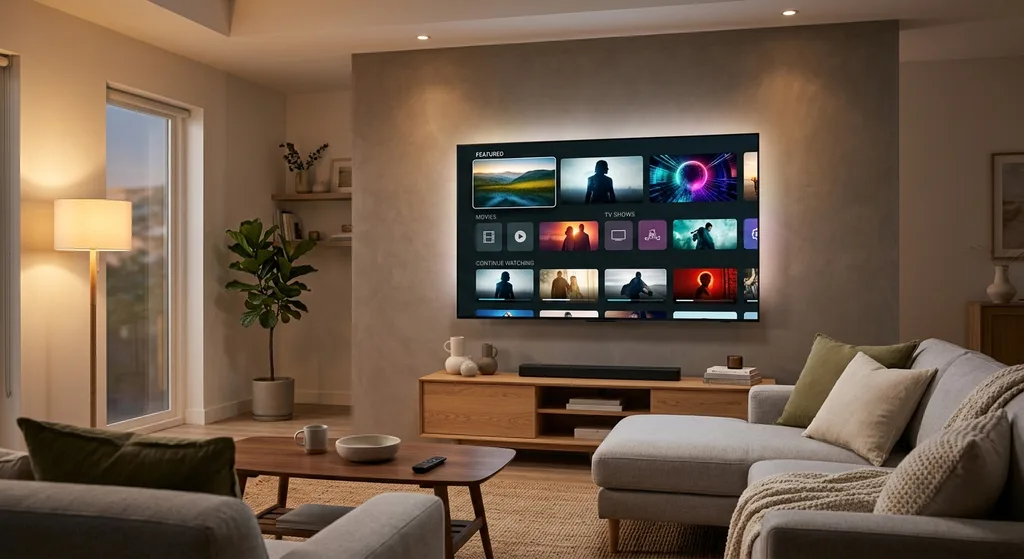
Streaming Quality Settings Explained: How to Get the Best Picture Without Buffering
A practical breakdown of how streaming quality settings work and how to choose the right resolution, bitrate, and frame rate for smoother, clearer viewing.
If you have ever paused mid-show to tweak a quality slider, or watched your live stream pixelate during an important moment, you already know that streaming quality settings are not a 'set it and forget it' feature. They are a balancing act between your internet connection, your device, and the platform you are using. Understanding how these settings work can mean the difference between a crisp, enjoyable viewing experience and a frustrating cycle of buffering and blur.
This guide breaks down what streaming quality settings actually control, how to choose the right ones for your setup, and what to do when something does not look or play right. Whether you are watching a movie, hosting a live broadcast, or just trying to stretch your data plan, these fundamentals apply across most major platforms.
What Streaming Quality Settings Actually Control
At their core, streaming quality settings determine three things: resolution, bitrate, and frame rate. Resolution refers to the number of pixels in the video image, commonly described as 480p, 720p, 1080p, or 4K. Bitrate is the amount of data transmitted per second to build that image, measured in kilobits or megabits per second. Frame rate is how many individual images are displayed each second, usually 30 or 60 frames per second for most consumer content.
These three elements work together. A higher resolution without enough bitrate will look blocky or smeared during motion. A high frame rate without adequate bandwidth can cause stuttering. Most platforms bundle these into simplified quality tiers like "Auto," "High," "Medium," and "Low" so viewers do not have to manage each variable separately, but understanding what is happening underneath helps you make smarter manual choices when needed.
Auto Quality vs Manual Quality: Which Should You Use
Most streaming services default to an automatic setting that adjusts quality in real time based on your current network conditions. This is generally the best option for casual viewing because it reduces buffering by stepping down resolution when your connection slows, then stepping back up when bandwidth improves.
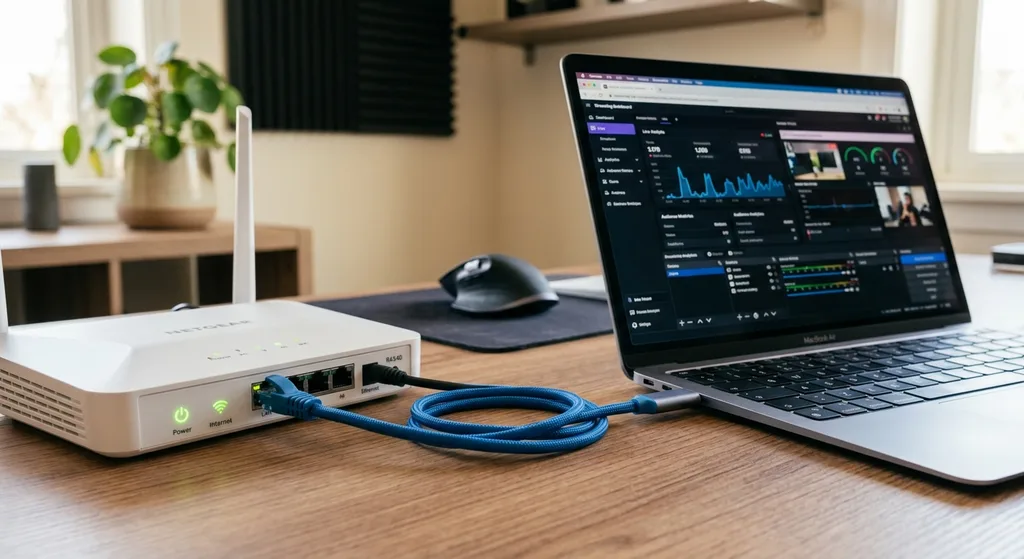
However, manual settings have their place. If you are on a metered or limited data plan, manually capping quality at 480p or 720p can help you avoid overage charges. If you are streaming to a large screen and have a reliably fast connection, manually locking in the highest available resolution ensures you are not left on a lower setting due to a brief dip in speed that the auto-adjust algorithm overcorrected for. Testing both approaches during different times of day can reveal which works better for your specific household network.
How Your Internet Connection Affects Available Quality
Streaming quality settings are only as good as the connection delivering them. A general guideline many platforms use is roughly 3 to 4 Mbps for standard definition, 5 to 8 Mbps for 1080p HD, and 25 Mbps or more for 4K content. These numbers can vary by service, but they give you a baseline for troubleshooting.
If you consistently see your stream drop to a lower resolution despite having a plan that should support HD or 4K, the issue is often not your internet plan itself but conditions on your local network. Wi-Fi congestion, distance from the router, interference from other devices, or too many simultaneous streams in the household can all eat into the bandwidth actually reaching your streaming device. For a deeper dive into fixing these kinds of issues, our guide on buffer-free streaming walks through network optimization step by step.
Device and Platform Limitations to Keep in Mind
Not every device can display every quality tier, regardless of how fast your internet is. Older smart TVs, streaming sticks, and phones may cap out at 1080p even if the app offers 4K options elsewhere. Similarly, some platforms restrict their highest quality tiers to specific subscription levels, meaning a slow connection is not always the culprit when quality looks lower than expected.
It is worth checking your device specifications and your subscription plan before assuming a network problem. Updating your streaming app or device firmware can also resolve quality issues, since older software versions sometimes default to conservative quality settings for compatibility reasons.
Quality Settings for Content Creators and Live Streamers
If you are on the broadcasting side rather than just watching, quality settings take on a different dimension. As a streamer, you are choosing the resolution, bitrate, and frame rate that your encoder sends out, and that decision has to account for your upload speed, not your download speed. Many creators mistakenly focus on download speed when upload speed is what actually limits streaming quality on the broadcasting end.
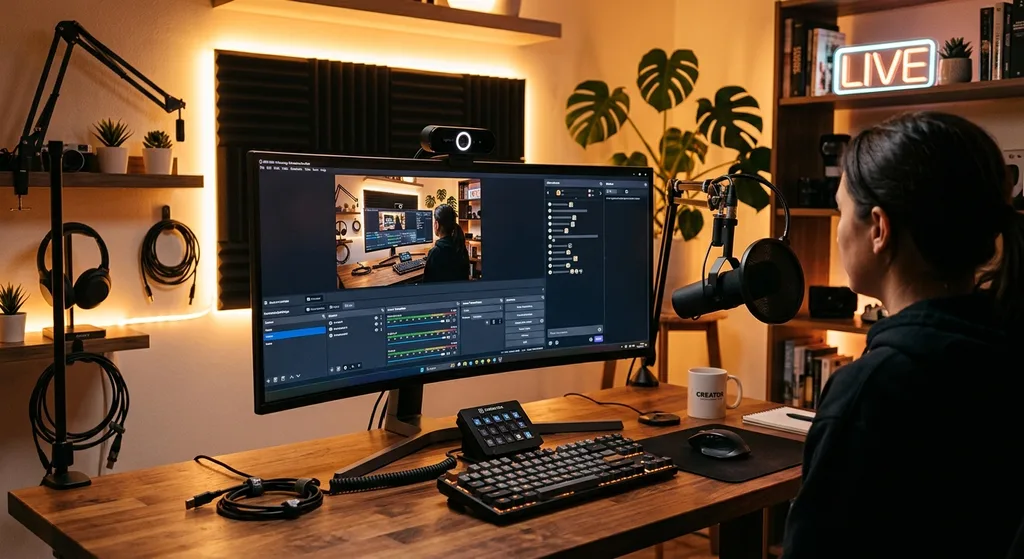
A common starting point for live streaming is 720p at 30 frames per second with a bitrate between 3,000 and 4,500 kbps, scaling up to 1080p at 60 frames per second with higher bitrates only if your upload speed and encoder hardware can reliably support it. Pushing settings beyond what your connection can sustain often results in dropped frames and a worse experience for viewers than a slightly lower but stable quality setting. Our complete breakdown in stream optimization covers encoder settings in more detail, and if you are just getting started, our full streaming tutorial walks through the setup process from scratch.
Troubleshooting Common Quality Problems
When quality issues pop up, a methodical approach saves time. Start by checking your actual connection speed with a speed test run close to the time you are experiencing problems. Next, restart your router and streaming device, since temporary glitches are a frequent and easily fixed cause of degraded quality. If problems persist, try switching from Wi-Fi to a wired ethernet connection where possible, as this removes a major source of variability.
If quality still will not improve, check whether the platform itself is experiencing outages or high demand, which can happen during major live events. Finally, review your manual quality settings in the app to confirm you have not accidentally capped your own stream at a lower tier than your setup can support.
Finding the Right Balance for Your Setup
There is no single "best" streaming quality setting that works for everyone. The right choice depends on your internet plan, your device capabilities, your data limits, and even how far you sit from your screen. A smaller phone screen rarely benefits from 4K, while a large living room TV will show the difference clearly. Taking the time to understand your own setup, rather than defaulting to whatever the platform chooses, lets you get consistently better results.
Ultimately, streaming quality settings are a tool, not a fixed rule. Experiment with manual versus automatic modes, keep your network in good shape, and revisit your settings periodically as your internet plan or devices change. A little attention here goes a long way toward smoother, clearer viewing every time you hit play.
Frequently asked questions
Why does my stream keep dropping to a lower quality automatically?
Most platforms use automatic quality adjustment to prevent buffering when your connection slows down. This is normal behavior, but if it happens frequently, check your Wi-Fi signal strength, reduce the number of devices using your network at once, or test a wired connection.
Is higher resolution always better?
Not necessarily. Higher resolution requires more bandwidth and processing power, and the visual benefit is limited on smaller screens or when viewed from a distance. Matching resolution to your device and viewing setup often gives better results than maxing out every setting.
What upload speed do I need for live streaming in 1080p?
General guidelines suggest a stable upload speed well above the bitrate you plan to stream at, often several Mbps higher than the minimum, to account for fluctuations. Testing your actual upload speed before going live is a reliable way to choose a sustainable setting.
Discussion
Join the conversation
Share your perspective and connect with other readers.